 HopBase Docs
Creative Studio: product images and video
Create product images and videos in your browser, with no code.
Sign in and open Creative Studio. It uses your HopBase account directly, so you need no API key, terminal, CC Switch, CLI installation, or API configuration.
Generate a product image
Open Creative Studio and choose Image
Select Image in the composer. Upload a product photo when you want to preserve a real product, or start with text only for a new concept.
Describe the result
Write the product, scene, lighting, composition, and usage channel in the prompt. For example: White-background hero image of a stainless-steel travel mug, soft studio light, centered composition, realistic product photography, no text.
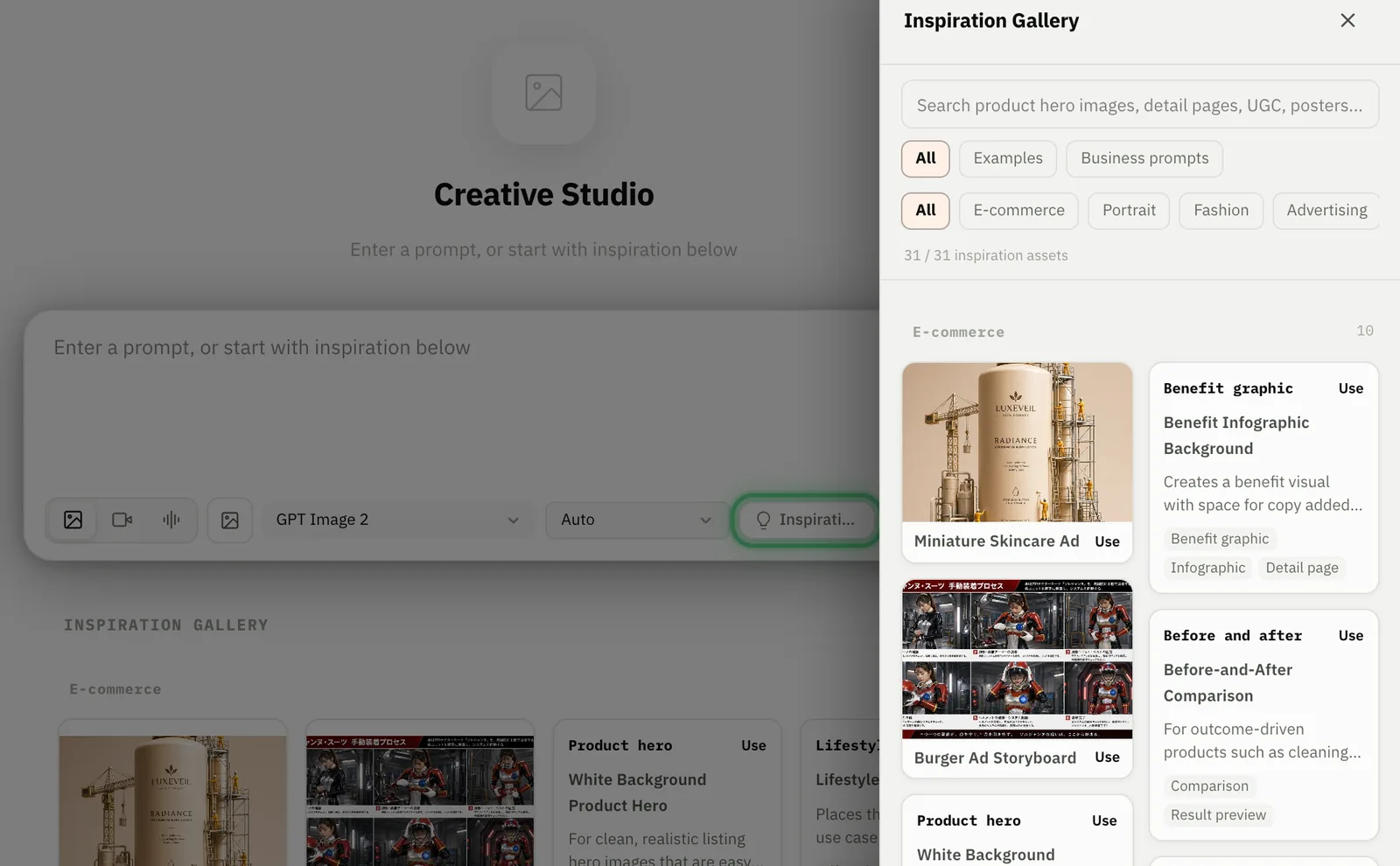
If you are unsure how to write a prompt, select Inspiration, filter for e-commerce examples, and choose Use on a suitable template. Replace the sample product details with your own before generating.
Choose the model and size
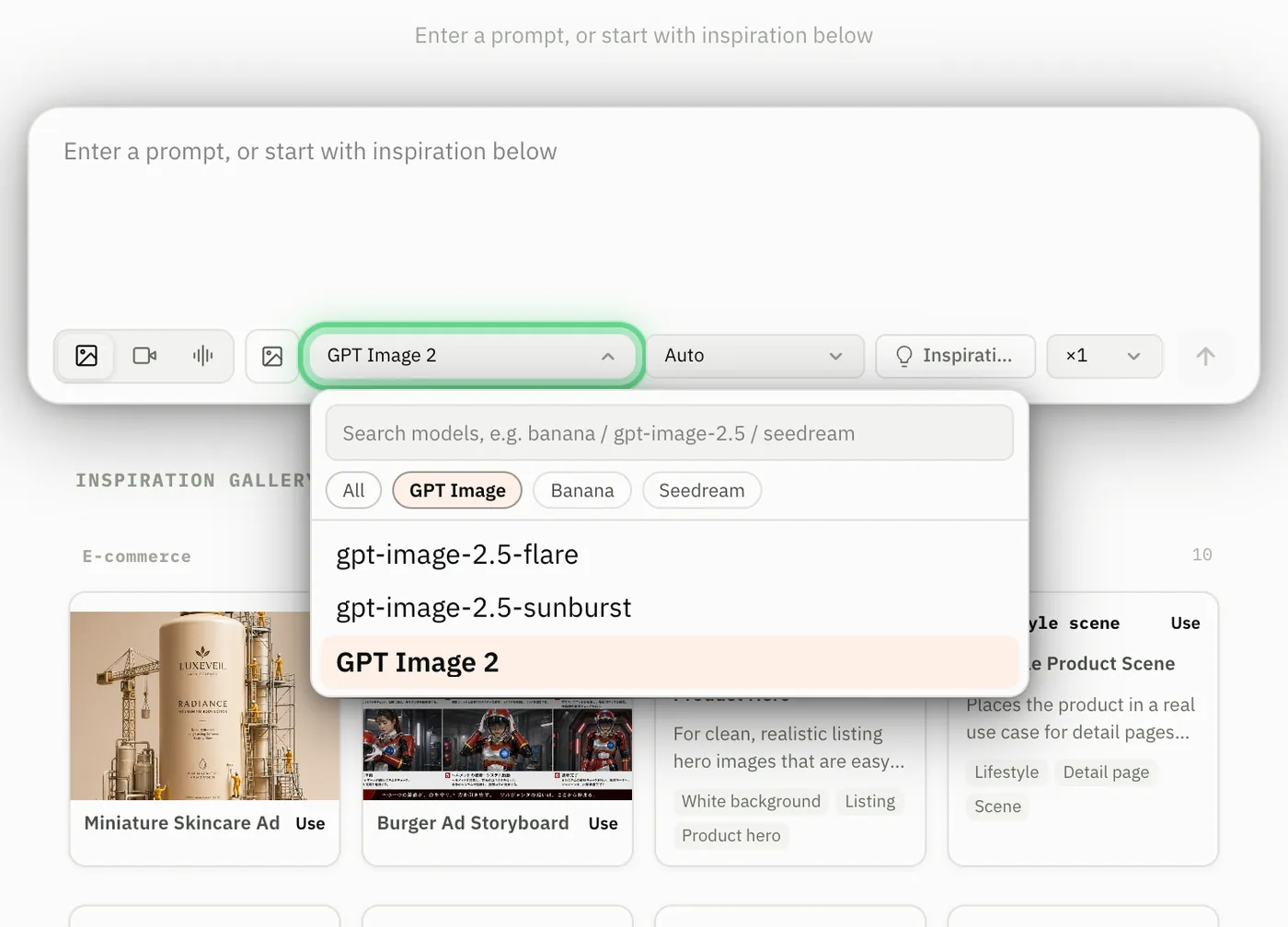
Choose an image model, then select the aspect ratio or resolution that matches the destination. Use square for marketplace listings, portrait for social posts, and landscape for banners.
Generate and review
Select Generate. When the result appears, check product shape, label accuracy, background, and crop before downloading or generating another version.
Generate a product video
Switch to Video
Select Video. Describe the product movement, camera movement, scene, and final frame. Upload a reference image when the model supports image-to-video.
Set video options
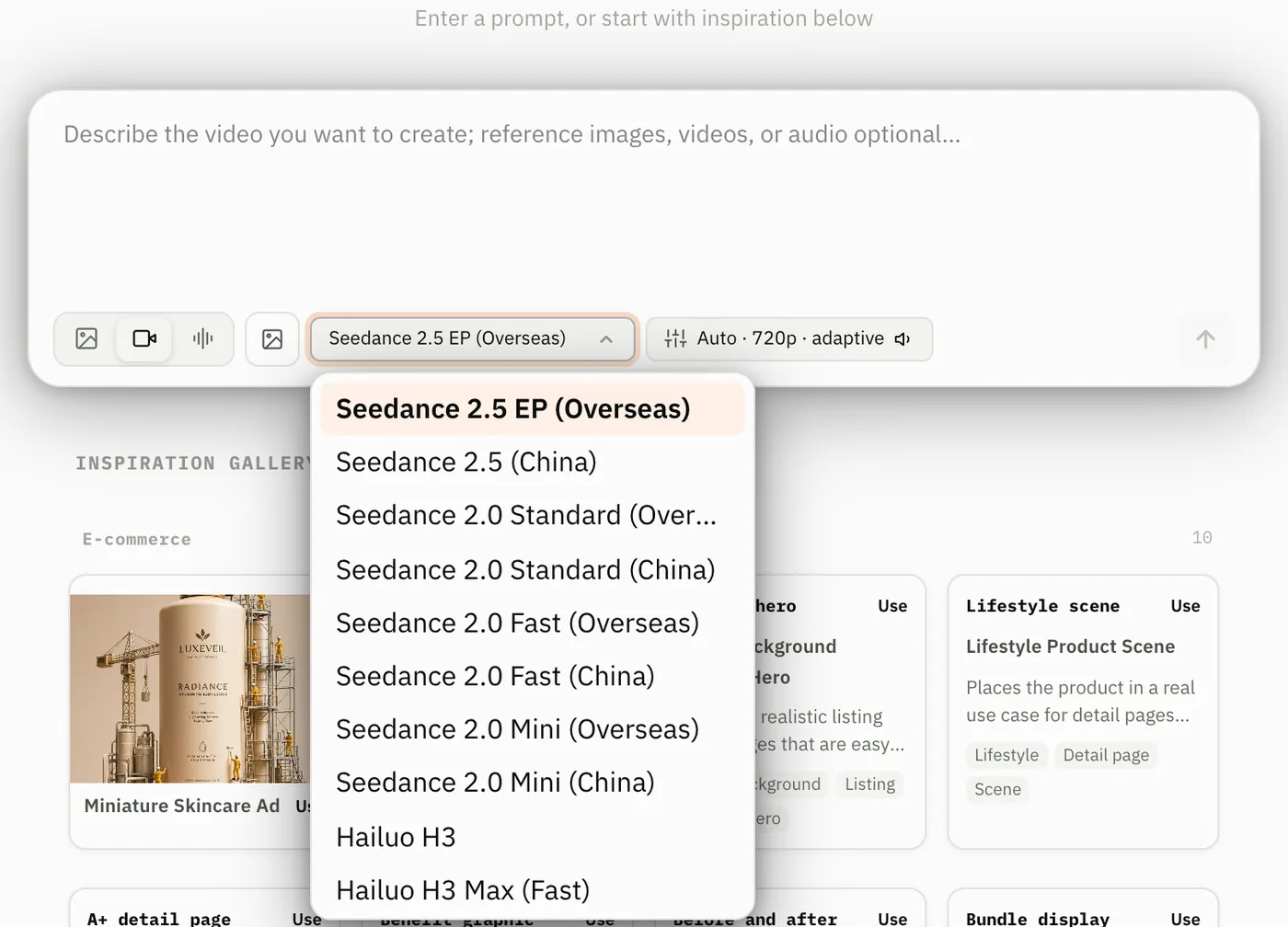
Open the model menu and choose a video model. The menu lists only the models your account can use right now. Where a family comes in China and overseas versions, the name ends in (China) or (Overseas) — for example Seedance 2.5 (China) or Seedance 2.0 Fast (Overseas) — and when a model is available through more than one group, a group selector appears next to it. The Seedance China version covers 2.0 Standard, Fast, Mini, and 2.5; only 4K needs Seedance 2.0 Standard (Overseas).
Then open the options button and confirm Duration, Resolution, and Aspect, plus the Audio, Watermark, and Return last frame switches, which appear only when the selected model supports them. Seedance 2.5 takes 4-30 seconds or Auto; its resolution is 480p / 720p overseas, with 1080p added in the China version. It defaults to automatic duration, the adaptive aspect ratio, audio on, no watermark, and a returned last frame. Editing and extension task modes may require automatic duration or the adaptive aspect ratio.
Generate and wait for completion
Select Generate. Video takes longer than image generation; keep the task page open until processing completes, then preview the full clip before downloading it.
Useful e-commerce prompt patterns
| Goal | Include in the prompt |
|---|---|
| Marketplace hero image | Product material, white or neutral background, front angle, shadow style, no text |
| Lifestyle image | Product, target customer, usage scene, time of day, camera distance |
| Short product video | Product action, camera movement, duration, opening frame, ending frame |
Generative models can alter labels, logos, packaging, and proportions. Upload a clear product reference when accuracy matters, and review every result before publishing it to a storefront or ad account.
Cost
Every generation is charged to your account balance at the rate of the model and group you pick — the same rates shown in the signed-in model catalog. Failed tasks are not charged. Each charge appears under Usage in the console; top up under Recharge when the balance runs low. Full rules: Concurrency, timeouts, and billing.
Next steps
- Image generation API — generate images from your own code
- Video generation — submit and poll video tasks from your own code
- Models — model IDs and capabilities