 HopBase Docs
CC Switch
Import a HopBase key into CC Switch and use it in Claude Code or Codex.
| Item | Value |
|---|---|
| Platforms | Windows, macOS, Linux |
| Clients | Claude Code, Codex CLI, Codex App |
| Import from | Console API Keys → ··· on the key row → Import CCS |
CC Switch manages configuration only; it does not install Codex App, Node.js, or either CLI.
The complete path
Create a HopBase key → Import CCS → Choose Claude Code or Codex CLI → Confirm in CC Switch → Enable
Before you start
Prepare the target client first: Codex App, Codex CLI, or Claude Code.
Choose the key by model: Claude uses a Claude-group key, and GPT uses a Codex Plus or Codex Pro group key, optionally combined with GPT Official Direct (Azure) on the same key.
GLM, Qwen, and DeepSeek use a key from their own groups; exact group names are listed in Which group to choose.
Update CC Switch: use the latest release; GLM routing requires version 3.17.0 or later.
Only making images or videos: skip API-key setup and use Creative Studio in the browser.
Install CC Switch
CC Switch is a desktop configuration manager. Use it when you prefer a graphical setup or regularly switch Claude Code and Codex providers.
Download the current .dmg from CC Switch Releases. Install and open the app once so your browser can launch it during import.
Import from the HopBase console
Open API Keys
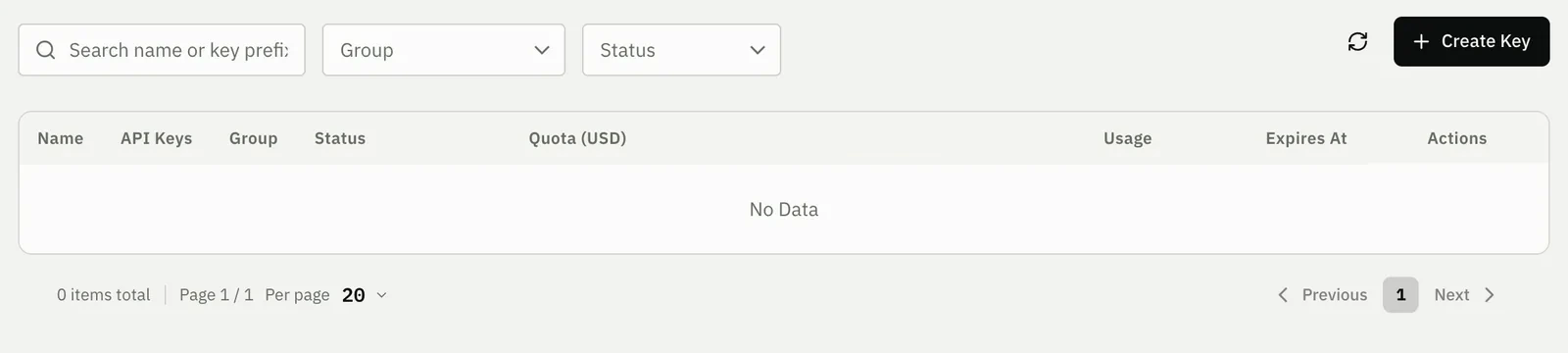
Open API Keys in the console and select Create Key in the upper-right corner.
Name the key and choose a model group
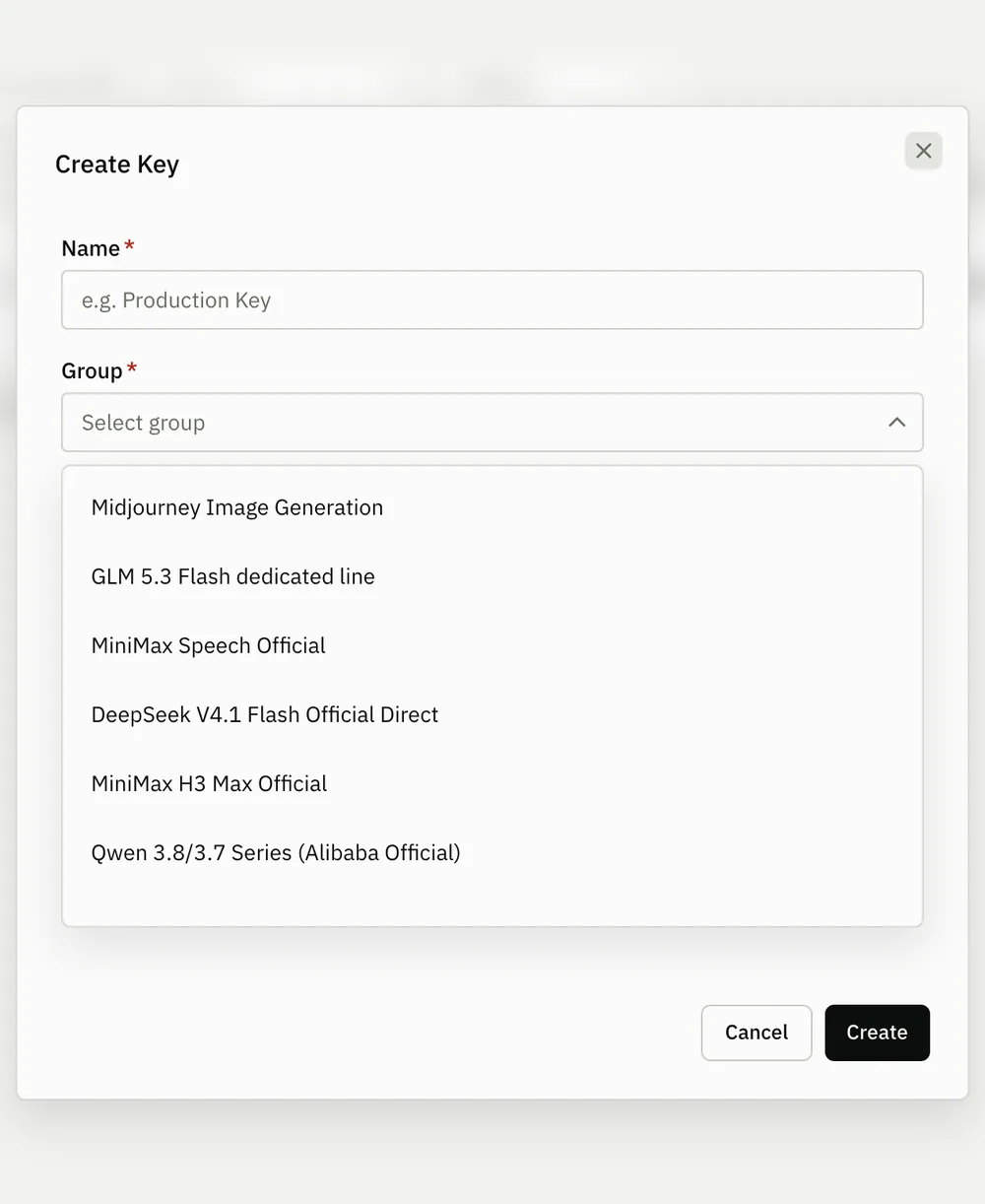
Enter a recognizable name, choose the group for the models you need, and select Create. Claude uses a Claude group, and GPT uses Codex Plus or Codex Pro, optionally together with GPT Official Direct (Azure). Expiration is optional.
GLM, Qwen, and DeepSeek use their own groups. Every group and the models it serves are listed in Which group to choose.
Open Import CCS
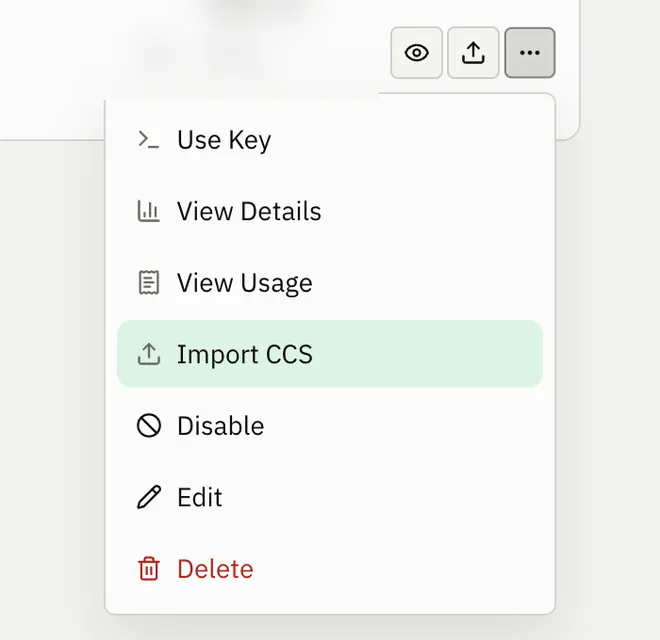
Find the new key row, open its ··· menu, and select Import CCS. You do not need to copy the key manually.
Choose the client
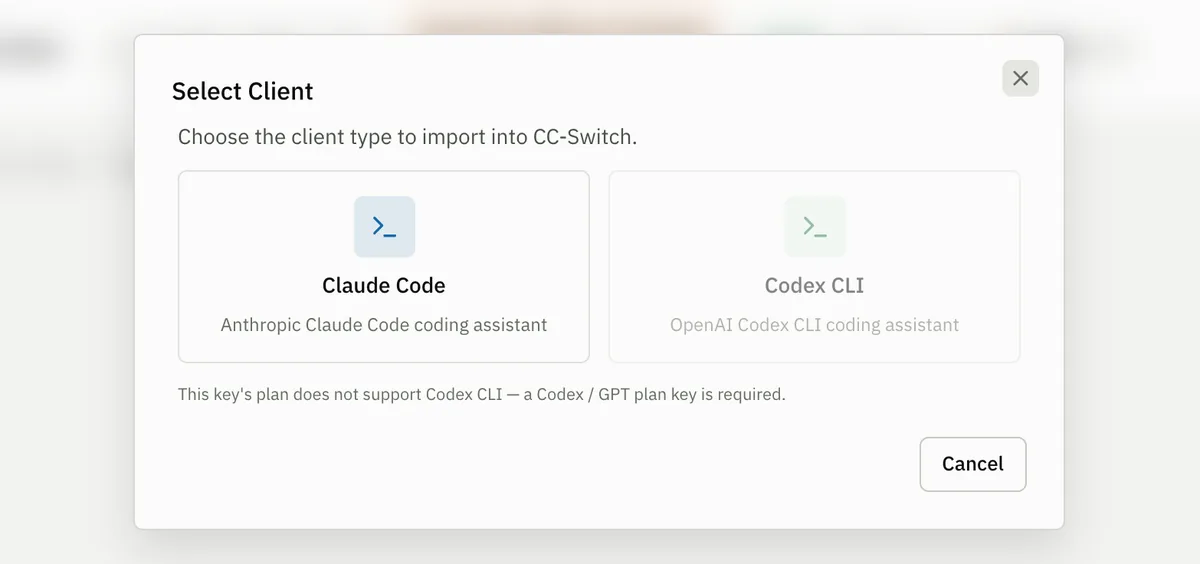
Choose Codex CLI for both Codex App and Codex CLI. Choose Claude Code when you use Claude Code. If you use both client families, repeat the import for each one.
Review and confirm
In the browser prompt, select Open CC Switch. Verify the provider name, Base URL, and masked key, then select Import.
Enable the provider
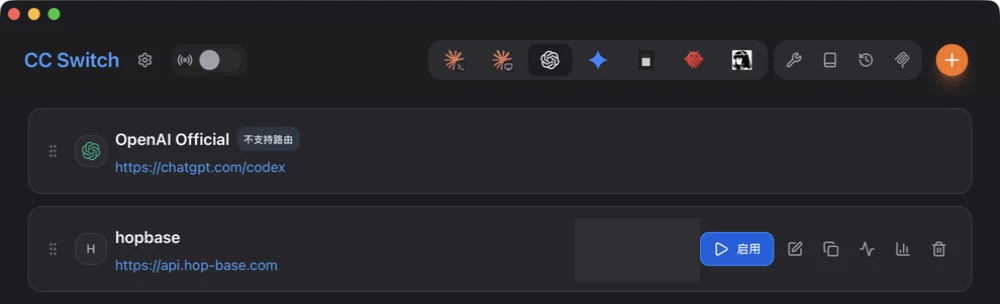
Open the matching Claude Code or Codex tab in CC Switch, find the imported provider, and select Enable. The provider should now appear as active.
Verify in a new terminal
Run claude or codex and send a short test. For Codex App, fully quit and reopen the app before starting a test task. If an existing terminal still uses the previous provider, close it and open a new terminal.
CC Switch writes the user-level Codex provider configuration. After switching providers, fully restart Codex App or open a new Codex CLI session so it reloads the configuration.
Which models need CC Switch local routing
Claude Code only speaks the Anthropic Messages protocol natively. A model whose HopBase endpoint is OpenAI Chat Completions — with no Anthropic Messages support — needs CC Switch's local router running in the background to translate between the two:
| Model family | Codex CLI | Claude Code | Model contract |
|---|---|---|---|
| GLM-5.3 | Not supported — no Responses endpoint | Local routing required | GLM-5.3 |
| Qwen (qwen3.8-max and others) | Direct — Responses is available | Direct — Anthropic Messages is available | Qwen |
| DeepSeek V4.1 / V4 | Direct — Responses is available | Direct — Anthropic Messages is available | DeepSeek V4 |
| Kimi K3 | Through CC Switch routing — the model has only Chat Completions, so the router converts Codex's Responses requests; do not edit config.toml by hand | Local routing required | Kimi K3 |
Qwen and DeepSeek need no routing: import, enable, and Claude Code talks to them directly. To enable local routing for Claude Code with GLM-5.3 or Kimi K3 (for the Codex side, follow the Codex steps on the Kimi K3 page):
Set the provider's API format
In the provider's advanced options in the Claude Code tab, set API format to OpenAI Chat Completions (routing required) and set the default fallback model to the exact model ID from the family's own page above.
Turn on local routing
Open Settings → Routing → Local routing, enable the main routing switch, then enable Claude Code.
Enable the provider and keep CC Switch running
Return to the provider card, select Enable, and leave CC Switch running in the background — local routing only works while the app is open.
Field values, model mapping, and verification steps for GLM-5.3 are on its own page linked in the table above; this page only covers the CC Switch side.
Troubleshooting
Browser did not open CC Switch: launch it manually once, then retry Import CCS.
Provider did not change: open the matching client tab and select Enable.
Command not found or an old provider remains: install Node.js LTS and the target CLI, then use a new terminal.
Routing error on GLM-5.3 or Kimi K3: confirm the API format, enable both local-routing switches, and keep CC Switch running. More errors are covered in Troubleshooting.
Next steps
- Claude Code: configure Claude Code with a key
- Codex CLI: configure Codex CLI or Codex App
- Troubleshooting: look up an error message